Search This Blog

Translate

Welcome

Hi,Thanks For visitin Again If This Is Your First Time Please Don't Forget To Subscribe or Follow us. Fell Free To Share Any Information.Hostgator


Showing posts with label Windows. Show all posts

5 February 2014

Samsung Windows Phone W750V Huron leaks

An upcoming Windows Phone 8.1 device has been leaked via famous Twitter-based leaker @evleaks, showing off what appears to be the first new WP device from Samsung in over a year.
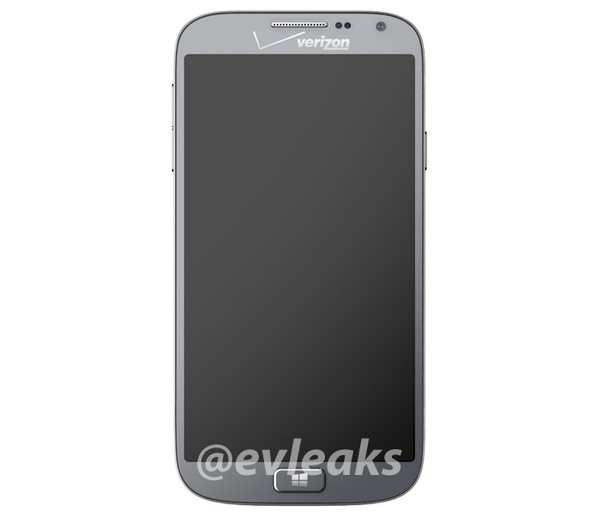

The  Huron codenamed SM-W750V , looks just like a  Samsung Galaxy S, but this time it will be based on Microsofts Windows 8.1, and apparently run on Verizon in the US. Besides the impressively thin bezels, the Huron is rumored to feature a fullHD display and a 13MP shooter.
The Huron codename SM-W750V  has also shown up on the site of the famous GFXBench benchmarking tool, which has listed a screen resolution at 720 x 1280. According to several sources GFXBench resulution is demed wrong,because GFXBench sometimes display inacurate display resolutions.

Also as shown by the GFXBench there is the presence of a quad-core CPU and Adreno 305 graphics.
Unfortunately the is no word on pricing and availability of the Huron just yet.

25 December 2013

Tips & Tricks on how to Extend My Laptop Battery Life


Many of us use Laptops or Notebooks tons of hours for our work, to play Games and to Browse Internet. Unfortunately, when the battery runs out of power, the laptop stops working. Every laptop user wants to maximize the time between battery recharges.  Although you can’t prevent your laptop’s battery from degrading, but there are several ways to slow down the process and Extend the Laptop Battery Life.

There are several things you can do to make your laptop’s battery last as long as possible

The life span of a laptop battery depends on a number of factors and is hard to predict. All rechargeable batteries wear out with time and usage. As time and cumulative use increase, the performance will degrade. For the typical user, noticeable reduction in run time generally will be observed after 18 to 24 months. For a power user, reduction in run time generally may be experienced prior to 18 months.

14 December 2013

Windows Phone 8.1 Blue update to add on-screennav buttons

On his Twitter account, renowned leakster @ evleaks has shared a part of a screenshot from
Windows Phone 8.1, which shows on-screen touch navigation buttons. Currently, the three-
button combo of Back, Windows and Search keys aren't part of the user interface, like they have
been on many Androids since Ice Cream Sandwich, but below the screen in either
hardware or capacitive touch flavors. Partial Windows Phone
"Blue" screenshot.
pic.twitter.com/LnV9h0MMKL
— @evleaks (@evleaks) December 14, 2013
evleaks ' tweet suggests Microsoft is going to change that and will either go for software
navigation keys or diversify the portfolio of Windows Phone devices giving OEMs the choice
between hardware and virtual buttons. Other Windows Phone 8.1 rumors suggest we're in for a notification center, enhanced multi-tasking and a Siri-like voice assistant.
We suspect Microsoft will official unveil its upcoming WP 8.1 OS at their Build developer
conference in April, 2014.

28 November 2013

Download Whatsapp Messenger on PC, Computer or Laptop Free Use

Learn How to Use Whatsapp Messenger on PC

These days Whatsapp has taken over all the messengers available in the market and because of simplicity and easy to use features, whatsapp is most popular messenger amongst all available chat applications over internet. But Whatsapp can be used only through smartphone, but lots of us are facing below problems before using Whatsapp application.

  • Don’t have Smartphone?
  • Don’t have Wifi internet connection or Data-package in phone?
  • Don’t like to chat from Mobile because of slow Typing Speed?
  • Mobile hang because of heavy data and hundreds of Chat messages in Whatsapp?
Friends, don’t worry, Now I will teach you how to Use Whatsapp Messenger free on PC or Computer or Laptop, even if you don’t have a smartphone.

How to Use Whatsapp on Computer or Laptop

install free whatsapp on pc computer laptop

Install Whatsapp on your PC using Bluestack

  • Free Download and Install Bluestack Android Imulator
  • On Bluestack home page, click Search icon on top right corner
use whatsapp on computer pc laptop free
  • Find Whatsapp from the search application list
  • Click Install button
  • Once Whatsapp Messenger Installed, Start the application in Bluestack

Download and run whatsapp for windows XP,Vista,7 and 8

WhatsApp is one of the famous online messaging applications for smart phones. By using WhatsApp you can send sms, files with free of cost. To use WhatsApp application you need one internet pack which won’t consume more data. WhatsApp users are increasing day by day. One reason for WhatsApp success is simple form of login and verification. Recently internet giants Google and Facebook tried to buy Whatsapp. Now we will see how to download WhatsApp for windows 7 and run WhatsApp on pc.


  1. Download Bluestacks Android Emulator on Windows 7 Machine (Size 8.9MB)
  2. Double Click the setup file to install Bluestacks
You should have a minimum of 2 GB RAM to install Bluestacks on Windows Machines.

Steps to Install WhatsApp for Windows 7 PC / Laptop / Desktop

  1. After Installing Bluestacks, in Home page of Bluestacks search for WhatsApp.

14 November 2013

How to Create a Logo With Microsoft Publisher 2010

www,techadenarena.blogspot.comAlthough logos appear everywhere from cereal boxes to toilet paper, creating one is an involved process. Logos can capture attention, communicate reputation and even directly contribute to an organization's success or failure. But logo creators aren't alone in the design process. Microsoft Publisher 2010 offers a range of logo design features, from sketching to in-program artwork to a paste board-like workspace, to assist you in your logo creation


Instructions


    • 1
      Open "Microsoft Publisher." Click the "Blank 8.5 x 11" button in the top left of the "Available Templates" screen. Change the workspace to the preferred logo size by clicking the "Page Design" tab, clicking the "Size" button below the tab and choosing a new page size. Publisher will automatically resize and zoom in the work area.
    • 2
      Click the "Insert" tab at the top of the work area. Click the "Shapes" button below the tab. Choose a shape from the fly-out menu to start the base of the logo, such as a star.

    • 3
      Click and drag the mouse, then release and the shape appears on the logo area. Use the options in the new orange "Shape Tools" tab at the top of the work area to give the shape a border or fill color to match the organization's color choices.

12 November 2013

How to Make a Web Site With Microsoft Publisher

Microsoft Publisher is a desktop publishing application. While people often use Publisher to design flyers, newsletters or other types of printable materials, the program offers other options as well. Among these are a variety of website creation tools that can allow for a simple design process, even for individuals with very little web design experience. Publisher can even be used to make multi-page sites that project a professional appearance.

Instructions


    • 1
      Launch Microsoft Publisher.
    • 2
      Click "Websites" from the "Publication Types" list in the left column.

    • 3
      Select a template from the choices in the center window, then click the "Create" button in the lower, right corner of the screen.
    • 4
      Click the check-marks next to each of the options that you plan to use your website for, then click the "OK" button.
    • 5
      Edit your pages using the website tools on the far left side of the screen, such as the "Text," "Pictures," "Forms" and "Tables" tools. You can switch between pages by clicking the numbers at the bottom of the window.

Follow us on